- Router placement matters more than most people think — moving your router to a central, elevated location can improve Wi-Fi in multiple rooms at once.
- Test signal strength room by room to identify dead zones, using simple speed tests or Wi-Fi analyzer apps.
- Upgrade outdated routers (especially older than 5 years) to Wi-Fi 6/6E or a stronger model for better performance and range.
- Use the right frequency for the right room — 5 GHz for fast performance near the router, 2.4 GHz for better coverage through walls.
- Mesh Wi-Fi systems offer the best full-home solution for large homes, multiple floors, or many connected devices.
- Powerline adapters are a strong alternative for basements and garages where Wi-Fi struggles through thick walls.
- Reduce interference and manage device load by moving electronics away from the router, switching channels, and using QoS or guest networks.
A weak Wi-Fi signal is one of the most frustrating problems in a modern home. You’re trying to stream a show, join a video call, or finish work, and suddenly the connection drops or buffers endlessly. It’s easy to assume the problem is your internet provider, but in many cases, the issue is simply how the Wi-Fi signal travels through your house. The good news is that you can fix weak Wi-Fi in every room without needing to be a tech expert or spending a lot of money.
In this article, we’ll walk through practical steps to improve Wi-Fi coverage in every room. You’ll learn how to identify weak spots, optimize your router placement, upgrade your setup, and use smart home solutions that actually work. By the end, your whole home should feel connected and reliable.
Why Is My Wi-Fi Weak in Some Rooms?
A Wi-Fi signal doesn’t travel like a straight beam. It spreads out, bounces off walls, and loses strength as it passes through objects. This means even a strong router can struggle in certain rooms.
Common reasons Wi-Fi is weak in specific areas include:
- Thick walls and dense materials like brick, concrete, or stone
- Metal objects, appliances, or mirrors interfering with signal
- The router being placed in a corner or behind furniture
- Devices using old Wi-Fi standards
- Multiple devices using the same network at once
- Electrical interference from microwaves, baby monitors, and cordless phones
The first step is identifying the weak areas. Once you know where the signal drops, you can start fixing it.
How Do I Find the Weak Wi-Fi Spots in My Home?

To improve Wi-Fi in every room, you need to map your signal. You don’t need expensive tools—just your phone or laptop.
Here’s how to do it:
Quick Way to Test Signal Strength
- Walk around your house with your phone and check the Wi-Fi bars.
- Try streaming a video in each room.
- Run a speed test in different areas (Speedtest by Ookla works well).
Use a Wi-Fi Analyzer App
There are free apps that can show you signal strength in real time, making it easy to identify weak spots in your home. These apps can help you spot:
- Dead zones
- Interference
- Which channel your network is using
Once you’ve mapped the weak spots, you’ll know where to focus your improvements.
Here are some popular Wi-Fi analyzer apps you can use:
- NetSpot (Windows, macOS, iOS, Android) – Great for mapping signal strength and visualizing dead zones.
- WiFi Analyzer (Android) – A simple and reliable app that shows signal strength and channel usage.
- Wi-Fi SweetSpots (iOS) – Measures signal strength as you move around your home and helps you pinpoint weak areas.
- Acrylic Wi-Fi Home (Windows) – A more advanced option that still remains user-friendly, showing signal strength, channels, and interference.
- Network Analyzer (iOS, Android) – Includes signal strength readings, network diagnostics, and channel analysis.
Using any of these apps, you can walk through your home, test each room, and build a clear map of where your Wi-Fi is strong and where it needs improvement.
Is Your Router in the Right Place?
Many Wi-Fi problems start with poor router placement. People often hide routers behind furniture or in a closet, which blocks the signal.
Here’s what to do instead:
Best Router Placement Tips
- Place the router near the center of your home.
- Keep it elevated (on a shelf or high table).
- Avoid placing it near thick walls or large metal objects.
- Keep it away from electronics like TVs, microwaves, and baby monitors.
Avoid These Common Router Mistakes
- Hiding the router in a cabinet
- Placing it in a corner or basement
- Putting it near large appliances
- Placing it on the floor
By simply moving the router to a better location, you can improve signal strength in multiple rooms at once.
Should You Upgrade Your Router?
If your router is more than 5 years old, it might not support modern Wi-Fi standards. Older routers struggle with multiple devices and high-speed internet.
Here’s how to know if it’s time to upgrade:
Signs Your Router Is Outdated
- Slow Wi-Fi even when you’re close to the router
- Frequent dropouts
- Your router gets hot often
- You have many smart home devices connected
- You have a gigabit internet plan but can’t reach those speeds
What to Look for in a New Router
- Wi-Fi 6 or Wi-Fi 6E support
- Dual-band or tri-band capability
- Strong coverage and range
- Good reviews for reliability
Upgrading your router can dramatically improve signal strength in every room, especially if you have a larger home or many devices.
What’s the Difference Between 2.4 GHz and 5 GHz?
Modern routers usually broadcast two networks: 2.4 GHz and 5 GHz. Knowing the difference helps you optimize performance.
2.4 GHz Network
- Better range
- Penetrates walls more easily
- Slower speeds
- More interference (many devices use 2.4 GHz)
5 GHz Network
- Faster speeds
- Shorter range
- Less interference
- Best for streaming, gaming, and video calls
If your devices support 5 GHz, use it in rooms closer to the router. Use 2.4 GHz for rooms further away or through multiple walls.
Can a Wi-Fi Extender Fix Weak Wi-Fi in Every Room?
Wi-Fi extenders are a popular solution because they’re affordable and easy to set up. However, they’re not always the best choice.
When a Wi-Fi Extender Works Well
- You have one or two weak rooms
- You only need to extend coverage slightly
- You have a simple home layout
When a Wi-Fi Extender Might Not Help
- You have a large home with multiple dead zones
- You need strong performance in every room
- You have many devices connected at once
Extenders can sometimes reduce speed because they use the same channel to receive and transmit data. For better performance, consider a mesh Wi-Fi system.
Is Mesh Wi-Fi Worth It?
Mesh Wi-Fi systems are designed to cover large homes with consistent signal strength. They use multiple units that work together to create one unified network.
Why Mesh Is a Great Solution
- Consistent coverage in every room
- Easy setup and management
- Devices automatically connect to the strongest node
- Great for homes with thick walls or multiple floors
When Mesh Is Especially Helpful
- Homes over 2,000 square feet
- Multiple floors
- Many smart home devices
- Dead zones in multiple rooms
Mesh systems can be more expensive, but they’re often the best long-term solution for full-home Wi-Fi coverage.
What About Powerline Adapters?
Powerline adapters use your home’s electrical wiring to extend your network. They’re a good option if Wi-Fi struggles through thick walls.
Benefits of Powerline Adapters
- Easy to set up
- Stable connection in rooms with poor Wi-Fi
- Works well for gaming consoles and smart TVs
Things to Consider
- Performance depends on your home’s wiring
- Not ideal if you have old electrical wiring
- Best when used with a wired Ethernet connection
Powerline adapters can be a smart choice for rooms like basements or garages where Wi-Fi struggles to reach.
How Do I Fix Weak Wi-Fi in the Living Room
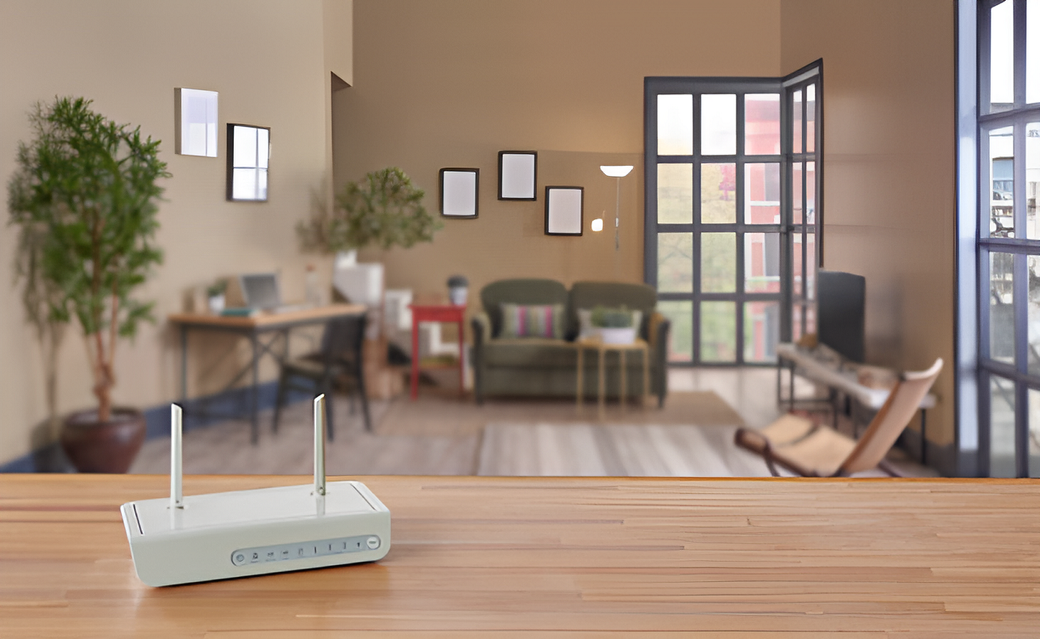
The living room is often where people stream movies and play games, so it needs a strong signal.
Quick Fixes for Living Room Wi-Fi
- Move the router closer to the living room if possible
- Use a mesh node in the living room
- Avoid placing the TV near the router
- Reduce interference from smart devices
If your living room is on a different floor or separated by thick walls, a mesh node or powerline adapter can make a big difference.
Why Is the Bedroom Wi-Fi Weak?
Bedrooms are often far from the router and may have more walls in between. Bedrooms also tend to be on a different floor, which makes the signal weaker.
Bedroom Wi-Fi Improvement Tips
- Place a mesh node on the same floor
- Use a Wi-Fi extender if mesh isn’t an option
- Use 2.4 GHz for devices far from the router
- Keep the router away from metal and mirrors
A simple mesh node or extender can improve bedroom Wi-Fi dramatically.
How to Fix Weak Wi-Fi in the Basement or Garage
Basements and garages are common weak spots because they often have thick walls and are far from the router.
Best Solutions for Basements and Garages
- Mesh Wi-Fi system with a node in the area
- Powerline adapter connected to a router
- Use a wired Ethernet connection if possible
- Consider a dedicated access point
These spaces often require a stronger solution than a basic extender, especially if you use them for work or streaming.
Can Your Home’s Layout Affect Wi-Fi?
Yes. Homes with multiple floors, thick walls, and unique layouts can create Wi-Fi dead zones.
Layout factors that impact Wi-Fi
- Multiple floors
- Concrete or brick walls
- Metal studs or reinforced walls
- Large open spaces
- Long hallways
In these homes, a mesh Wi-Fi system is often the best solution because it spreads coverage evenly across the layout.
Should You Use Wired Connections for Some Rooms?
If you have a room where you always need strong Wi-Fi, a wired connection can be the most reliable option.
Best Rooms for Wired Ethernet
- Home office
- Media room
- Gaming room
- Smart home hub location
Wired connections provide:
- Consistent speeds
- Low latency
- Less interference
Even if you still use Wi-Fi, having one or two wired connections can improve overall network stability.
How Do You Reduce Interference From Other Devices?
Many household devices interfere with Wi-Fi signals. The key is to identify and separate them from your router.
Common Interference Sources
- Microwaves
- Cordless phones
- Baby monitors
- Bluetooth devices
- Smart home devices
How to Reduce Interference
- Keep the router away from these devices
- Use 5 GHz for high-speed devices
- Switch channels on your router
- Avoid placing the router near a microwave or TV
Reducing interference can significantly improve Wi-Fi performance in multiple rooms.
How Do You Manage Too Many Connected Devices?
Modern homes have many connected devices. When too many devices use Wi-Fi at once, it can slow down the network.
Devices That Use the Most Bandwidth
- Streaming devices
- Gaming consoles
- Smart TVs
- Video conferencing devices
How to Manage Device Load
- Limit streaming quality on some devices
- Use Quality of Service (QoS) settings
- Set up a guest network for visitors
- Disconnect devices you’re not using
Managing device load can improve signal strength and performance in every room.
What Are the Best Wi-Fi Settings for Strong Coverage?
Sometimes your router settings are the problem. A few adjustments can improve performance.
Recommended Router Settings
- Choose the right channel (especially on 2.4 GHz)
- Use WPA3 security if available
- Enable QoS for important devices
- Update firmware regularly
These changes can improve signal stability and reduce interruptions.
How Often Should You Restart Your Router?
Restarting your router can temporarily fix many issues, but it’s not a long-term solution.
When to Restart Your Router
- If you notice slow speeds
- If your router is overheating
- If devices frequently disconnect
How Often Is Normal?
- Once every 1–2 weeks is fine
- If you need to restart daily, it’s a sign you need an upgrade
Restarting can help, but upgrading or improving placement is the real solution.
What’s the Easiest Solution for Most Homes?
For many homeowners, the easiest and most effective solution is a mesh Wi-Fi system.
Why Mesh Works So Well
- Covers every room with consistent signal
- Automatically switches devices to the strongest node
- Easy setup and management
- Works well with modern smart homes
If you want a simple fix that lasts, mesh Wi-Fi is often the best choice.
Final Checklist: How to Fix Weak Wi-Fi Signal in Every Room
Here’s a quick checklist you can follow to improve Wi-Fi in every room:
- Test signal strength in every room
- Move the router to a central, elevated location
- Upgrade your router if it’s outdated
- Use 5 GHz for close rooms and 2.4 GHz for distant rooms
- Consider mesh Wi-Fi for full-home coverage
- Use powerline adapters for basements or garages
- Reduce interference from appliances and devices
- Manage the number of connected devices
- Update router firmware and adjust settings
- Use wired Ethernet for key rooms
If you follow these steps, your home should feel more connected, stable, and reliable. A strong Wi-Fi signal doesn’t just improve streaming and gaming—it makes your smart home smarter, your work-from-home days smoother, and your daily life more convenient.